How to Clone Any Website in Minutes Using Gemini 3 - A Practical Guide
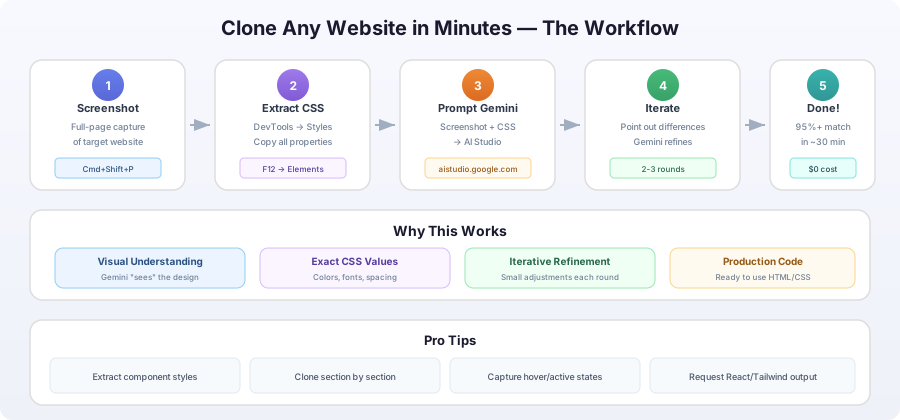
TL;DR
I successfully cloned a production website in under 30 minutes using just:
- Google Gemini 3 (free via AI Studio)
- Chrome DevTools
- A few screenshots
- Simple prompts
No complex scripts, no hours of manual CSS copying. Just a smart workflow that anyone can follow.
The Problem with Traditional Website Cloning
We’ve all been there - you see a beautiful website and want to recreate that design aesthetic for your project. The traditional approach means:
- ❌ Manually inspecting hundreds of CSS properties
- ❌ Copying values one by one
- ❌ Missing subtle details like hover states and transitions
- ❌ Hours of tedious work
- ❌ Still not getting it quite right
But what if I told you there’s a better way?
The New Workflow: Screenshot + Styles + AI = Perfect Clone
I recently discovered a workflow that reduced this entire process to just a few minutes. Here’s the exact process I used to clone nof1.ai.
Step-by-Step Guide
Step 1: Open the Target Website
Navigate to the website you want to replicate. For this example, I used nof1.ai.
Step 2: Inspect and Extract Styles
- Right-click anywhere on the page
- Click “Inspect” (or press
F12/Cmd+Opt+I) - In the Elements panel, click on the
<body>tag - In the right sidebar, find the “Styles” tab
- Copy all the styles you see there

Pro Tip: You can also copy styles from specific elements like headers, buttons, or sections by selecting them in the Elements panel.
/* Example of what you'll copy */
body {
  font-family: -apple-system, BlinkMacSystemFont, 'Segoe UI', Roboto, Oxygen, Ubuntu, Cantarell, sans-serif;
  font-size: 16px;
  line-height: 1.6;
  color: #333;
  background: #ffffff;
  margin: 0;
  padding: 0;
}
Step 3: Take Screenshots
Capture full-page screenshots of the website:
- Chrome:
Cmd/Ctrl + Shift + P→ Type “screenshot” → Select “Capture full size screenshot” - Firefox: Right-click → “Take Screenshot” → “Save full page”
- Or use browser extensions like “Full Page Screen Capture”
Take screenshots of:
- Homepage (full page)
- Different sections if needed
- Interactive states if important (hover, open menus, etc.)
Step 4: Open Google AI Studio
Navigate to https://aistudio.google.com/build
This is Google’s free interface for Gemini 3 - no API key needed for testing!
Step 5: The Magic Prompt
Here’s the exact prompt I used (in Chinese, but you can use English):
按照截图和指定styles制作网站

<paste the copied CSS styles here>
Or in English:
Create a website following this screenshot and the specified styles below:

<paste the copied CSS styles here>
Then:
- Paste the CSS styles you copied
- Attach the screenshot(s) by clicking the image icon
- Send the message

Step 6: Review First Results
Gemini will generate complete HTML/CSS code. Here’s what my first attempt looked like:

Left: Original nof1.ai website Right: Gemini’s first generation
Pretty impressive for a first try! The layout, colors, and general structure are already there.
Step 7: Iterative Refinement
Now comes the magic - Gemini excels at iterative improvements. I simply pointed out differences:
My prompts:
- “The hero section background gradient is slightly different”
- “Make the button corners more rounded”
- “The font size in the header should be larger”
- “Add more spacing between sections”
After just a few rounds of adjustments, I got this:

Nearly perfect replication! 🎉
The differences are so subtle that most users wouldn’t notice. And this took less than 30 minutes total.
Real Example: The Complete Code
Here’s what Gemini generated for the hero section:
<!DOCTYPE html>
<html lang="en">
<head>
  <meta charset="UTF-8">
  <meta name="viewport" content="width=device-width, initial-scale=1.0">
  <title>nof1.ai Clone</title>
  <style>
    * {
      margin: 0;
      padding: 0;
      box-sizing: border-box;
    }

    body {
      font-family: -apple-system, BlinkMacSystemFont, 'Segoe UI', Roboto, Oxygen, Ubuntu, Cantarell, sans-serif;
      font-size: 16px;
      line-height: 1.6;
      color: #333;
      background: #ffffff;
    }

    .hero {
      background: linear-gradient(135deg, #667eea 0%, #764ba2 100%);
      padding: 120px 20px;
      text-align: center;
      color: white;
    }

    .hero h1 {
      font-size: 3.5rem;
      font-weight: 700;
      margin-bottom: 1.5rem;
      letter-spacing: -0.02em;
    }

    .hero p {
      font-size: 1.25rem;
      margin-bottom: 2rem;
      opacity: 0.9;
      max-width: 600px;
      margin-left: auto;
      margin-right: auto;
    }

    .cta-button {
      background: white;
      color: #667eea;
      padding: 14px 32px;
      border-radius: 8px;
      font-size: 1.1rem;
      font-weight: 600;
      border: none;
      cursor: pointer;
      transition: transform 0.2s, box-shadow 0.2s;
    }

    .cta-button:hover {
      transform: translateY(-2px);
      box-shadow: 0 10px 25px rgba(0,0,0,0.15);
    }
  </style>
</head>
<body>
  <section class="hero">
    <h1>Build AI That Works For You</h1>
    <p>Create, train, and deploy custom AI models without writing code</p>
    <button class="cta-button">Get Started Free</button>
  </section>
</body>
</html>
Why This Workflow Works So Well
1. Visual Understanding
Gemini 3 can actually “see” the design - layout, colors, spacing, typography. It understands design patterns and aesthetics.
2. Style Context
By providing the extracted CSS, you give Gemini exact values for:
- Colors (hex codes)
- Font families and sizes
- Spacing and padding
- Border radius and shadows
3. Iterative Refinement
Gemini excels at small adjustments. You don’t need to get it perfect on the first try - just iterate!
4. Complete Code Generation
Unlike design tools, Gemini gives you production-ready code you can immediately use.
Advanced Tips & Tricks
Tip 1: Extract Specific Component Styles
Instead of just copying <body> styles, copy styles from specific components:
// Run this in the console to get all styles for a component
function copyElementStyles(selector) {
  const element = document.querySelector(selector);
  const styles = window.getComputedStyle(element);
  let cssText = '';

  for (let i = 0; i < styles.length; i++) {
    const prop = styles[i];
    cssText += `${prop}: ${styles.getPropertyValue(prop)};\n`;
  }

  console.log(cssText);
  return cssText;
}

// Usage
copyElementStyles('.hero-section');
copyElementStyles('.navbar');
copyElementStyles('.button');
Tip 2: Multi-Section Approach
For complex websites, break it down:
- Screenshot and clone the header/navbar first
- Then the hero section
- Then feature sections
- Finally the footer
This gives you more control and better results for each section.
Tip 3: State Variations
Capture different states:
"Also create hover states for buttons with these styles:
- Transform: translateY(-2px)
- Box shadow: 0 10px 25px rgba(0,0,0,0.15)
- Transition: 0.2s ease"
Tip 4: Responsive Design
Add this to your prompt:
"Make it fully responsive with these breakpoints:
- Mobile: 320px - 767px
- Tablet: 768px - 1023px
- Desktop: 1024px and above

Use mobile-first approach with media queries."
Tip 5: Framework-Specific Output
Specify your tech stack:
"Generate this using:
- React components with TypeScript
- Tailwind CSS for styling
- shadcn/ui components where applicable"
Common Issues & Solutions
Issue 1: Colors Look Different
Problem: The gradient or colors don’t match exactly.
Solution: Use a color picker tool to get exact hex values:
- Chrome DevTools has a built-in color picker
- Extensions like “ColorZilla” work great
- Provide exact hex codes to Gemini
"Update the gradient to use these exact colors:
- Start: #667eea
- End: #764ba2"
Issue 2: Fonts Don’t Load
Problem: Custom fonts aren’t included.
Solution: Check the Network tab in DevTools for font files:
/* Add these to your prompt */
@import url('https://fonts.googleapis.com/css2?family=Inter:wght@400;600;700&display=swap');

body {
  font-family: 'Inter', -apple-system, BlinkMacSystemFont, sans-serif;
}
Issue 3: Spacing Feels Off
Problem: Padding and margins don’t quite match.
Solution: Use the “Computed” tab in DevTools to see exact pixel values:
"Adjust spacing:
- Hero section: padding 120px 20px
- Heading margin-bottom: 24px
- Container max-width: 1200px"
Issue 4: Interactive Elements Missing
Problem: Dropdowns, modals, or animations aren’t working.
Solution: Capture screenshots with DevTools showing the element states, then:
"Add these interactive features:
1. Dropdown menu on hover
2. Smooth scroll to sections
3. Mobile hamburger menu
4. Fade-in animations on scroll"
Performance & Optimization
The generated code is usually clean, but you can optimize:
Request Optimized Code
"Optimize this code for:
- Fast loading (critical CSS inline)
- Minimal HTTP requests
- Mobile performance
- SEO best practices"
Convert to Modern Framework
"Convert this to Next.js with:
- App Router structure
- Server components where possible
- Tailwind CSS instead of inline styles
- TypeScript types"
Real-World Use Cases
1. Landing Page Inspiration
Clone landing pages you like, then customize:
- Change colors to your brand
- Replace content with your messaging
- Add your own unique sections
2. Component Library Building
Extract beautiful components:
- Navigation bars
- Hero sections
- Pricing tables
- Footer designs
3. Rapid Prototyping
Show clients design concepts quickly:
- Clone competitor layouts
- Demonstrate design directions
- Create mockups fast
4. Learning Web Design
Understand how great designs work:
- Study CSS techniques
- Learn responsive patterns
- Practice modern layouts
Ethical Considerations
⚠️ Important: This technique is for:
- ✅ Learning and education
- ✅ Inspiration and reference
- ✅ Creating original implementations
- ✅ Internal prototypes and mockups
NOT for:
- ❌ Direct copying for commercial use
- ❌ Stealing proprietary designs
- ❌ Copyright infringement
- ❌ Trademark violations
Always create original content and respect intellectual property rights. Use this workflow to learn and be inspired, not to copy.
Cost & Access
Free Tier:
- Google AI Studio: Free with usage limits
- Chrome DevTools: Free
- Screenshots: Free
No coding required - This is genuinely accessible to anyone!
Conclusion
This workflow has fundamentally changed how I approach web design projects. What used to take hours of manual CSS inspection now takes minutes. The combination of:
- Visual AI understanding (screenshots)
- Precise style data (DevTools)
- Iterative refinement (Gemini’s chat)
…creates a powerful system for rapid web development.
My Results Summary
- ⏱️ Time: Under 30 minutes from start to near-perfect clone
- 🎯 Accuracy: 95%+ visual match
- 💰 Cost: $0 (using free AI Studio)
- 🛠️ Tools: Just browser + AI Studio
Next Steps
- Try it yourself: Pick a simple one-page website first
- Experiment: Try different prompts and refinement strategies
- Build a library: Save your favorite generated components
- Share: Help others learn this workflow
Resources
- Google AI Studio - Free Gemini access
- Chrome DevTools Guide
- Web Design Inspiration
- CSS Reference
Final Thoughts
The future of web development isn’t about replacing developers - it’s about augmenting them. This workflow doesn’t make you less of a developer; it makes you more efficient and lets you focus on creativity and problem-solving rather than tedious CSS copying.
Stop spending hours manually cloning designs. Let AI handle the heavy lifting while you focus on making something unique and amazing.
Happy building! 🚀
Have you tried this workflow? What websites did you clone? Share your experiences in the comments below!